

Registering Executables and Scripts
What is an executable?
Executables are processes that can be run outside of the application they belong to. Most of the existing executables are from Vulcan. They are sometimes used by menus within the application, but they can also be used independently without the application running. They are run within a shell environment.
Calling and configuring executables
Executables are called and configured using the command line. The name of the executable to run comes first, followed by the arguments. What arguments are needed depends on what the executable does or what options are wanted.
Registering executables using external xml files
How to register commands and scripts
An external xml file can be used to register command line executables or scripts for use in the Workflow Editor. The creation of an external xml file allows for a user-friendly interface to be created for automatic input selection and help. Registered commands appear as selections in the Workflow Command Line component and in the Workbench Text Editor command line tool.
This is an example of an interface built using this tool, the trirelimit.exe command in this case. The xml definition that defined this interface is below (with text abbreviated).
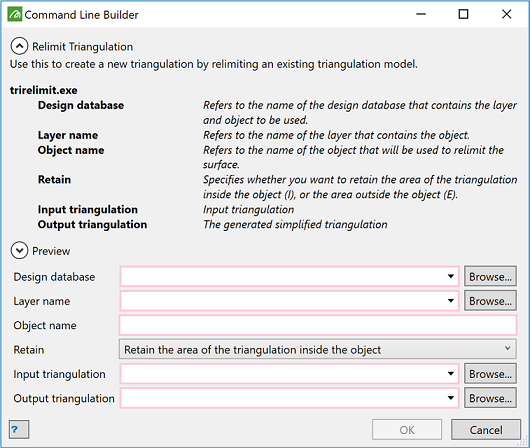
<Executable Name="trirelimit.exe"
    Category="Vulcan.TriangulationCommands"
    Label="Relimit Triangulation"
    SearchTags="Crop"
    ToolTip="Use this to create a new triangulation by ..." >
    <Parameter Name="input_datagrid_database"
        Type="BrowseFile" Descriptor="Vulcan.Database.Design"
        Mandatory="true" Direction="Input"
        Label="Design Database" ShortName="DGD"
        ToolTip="Refers to the name of the design database that ..." />
    <Parameter Name="datagrid_layer"
        Type="BrowseFile" Descriptor="Vulcan.Database.Design.Layer"
        Mandatory="true" Direction="Input"
        Context="input_datagrid_database"
        Label="Layer name" ShortName="Layer"
        ToolTip="Refers to the name of the layer that ..." />
    <Parameter Name="object_name"
        Type="Text" Mandatory="true"
        Label="Object name"
        ToolTip="Refers to the name of the object that ..." />
    <Parameter Type="Combo" Mandatory="true"
        Label="Retain"
        ToolTip="Specifies whether you want to retain ..." >
        <Option Label="Retain the area inside ..." Pattern="I" />
        <Option Label="Retain the area outside ..." Pattern="E" />
    </Parameter>
    <Parameter Name="input_triangulation"
        Type="BrowseFile" Descriptor="Vulcan.Model.Triangulation"
        Mandatory="true" Direction="Input"
        Label="Input triangulation" ShortName="Input Tri"
        ToolTip="Input triangulation" />
    <Parameter Name="Output_triangulation"
        Type="BrowseFile" Descriptor="Vulcan.Model.Triangulation"
        Mandatory="true" Direction="Input"
        Label="Output triangulation" ShortName="Output tri"
        ToolTip="The generated relimited triangulation" />
</Executable>
Where to register commands and scripts
Commands and scripts can be registered in the following file:
C:\Users\<YourName>\AppData\Local\Maptek\Workbench\ExeDefinitions.xml
Configuring an external xml file
An empty definition file would look like that below. Also note the definition of an alias (you can define as many as you like). The alias name can be used in text strings in the form [Name] which will be replaced by the FullText value during registration.
<?xml version="1.0" encoding="utf-8" ?>
<Executables xmlns="http://www.maptek.com/workbench/ExecutableSchema.xsd">
    <Alias Name="MODEL" FullText="Vulcan.Model"/>
	...
</Executables>
The registration syntax is explained below.
XML attributes of an executable
The definition of an executable describes its command line and provides a way to build a panel that will make constructing that command line easier. Here are a list of attributes used to define an executable:
-
Name="string" (required) — The executable filename with extension, e.g. "badd.exe".
-
Category="string" (required) — The name of the category to which this executable belongs. It can be "Hidden" so that is appears in no category but can be referenced by other definitions.
-
Runtime=["Shell"|"Python"|"Lava"|"Perl"|"Batch"] — The runtime environment used to execute the command. If not provided, then "Shell" is the default and indicates the t-shell runtime environment installed with Vulcan. To run windows command prompt commands, use the "Batch" runtime.
-
Label=”string” (optional) — The label or display name for the executable when shown on panels.
-
SearchTags=”string” (required) — A list of related words to be matched against when searching for the executable. Executable name is included automatically.
-
ToolTip=”string” (optional)
Categories
Executables will be divided into several categories to make finding them easier. Currently there is only one level, there are no subcategories. Categories have a name by which they are referenced. They also have a label and an icon image that are used when the category appears in a menu.
<Category Name="Vulcan.BlockCommands"
    Label="name text"
    Image="Image/path" />
Built-in categories include:
- "Vulcan.GeneralCommands" for general purpose commands
- "Vulcan.BlockCommands" for block model commands
- "Vulcan.TriangulationCommands" for triangulation commands
- "Vulcan.PythonCommands" for Python scripts
Parameters and Fields
Executables are defined by a sequence of parameters. To help build usable panels there are also various display types, fields and control groupings.
The command line for an executable is built from only the Parameter definitions. Sometimes it is required to build up a complex parameter from multiple parts and for this Fields can be used. Fields do not map to the final command line output but will have a Name="fieldname" argument and will be referenced as part of a parameter pattern definition by this name $(fieldname).
-
Name="string" (optional) — The name argument allows the parameter or field to be referenced by other parameters, usually in their Pattern argument as a variable in the form $(paramname).
-
Type="string" (optional) — The type of parameter. (See below for common types.)
-
Label="string" (optional) — The display name for the parameter which is shown on panels.
-
Direction="Input"|"Output"|"Both"| (optional) — The type of the connector created when using auto connector generation. The default in Input.
-
ShortName="string" (optional) — The display name for the parameter when using auto connector generation.
-
ToolTip="string" (optional)
-
Pattern="string" (optional) — The final string that will become part of the resultant command line. It defaults to "$$", which represents the value of the current parameter. If additional text is needed, then the Pattern argument can be used to change the output string, e.g. "-P $$". The pattern can also reference other named parameters or fields by their name, e.g. "-P $(somename)". Any combination of references can be used in the pattern field.
-
Mandatory=[true|false] (optional) — A boolean argument which if true, flags a parameter as required. The panel OK button will only be enabled when all the mandatory parameters have a value.
-
Order = "number" (optional) — An argument which is only needed if the order that controls appears on the panel is different to the order the parameter appears in the final command line. The default is "1" and unless otherwise changed all subsequent parameters will follow in sequence until the order argument is changed. This is usually used when obscure options are expected before the main command line arguments. In such a case the main arguments are defined first and the first has an Order="2". The options then follow with the first of those having Order="1". This ensures that the options precede the main arguments in the final output.
-
Default = "string" (optional) — A fallback value to use for the parameter or field if the user does not enter data or (in the case of check or radio buttons) select the option. Defaults do not apply to parameters that remain disabled within a group box.
Parameter Types
The Parameter type can be set to the following values:
-
BrowserFile — Creates a combo box holding the result of a file query and a browse button. Arguments include:
-
Descriptor="string" (required). This is the file/object type to query.
-
Context="string" (optional). This is the name of a field or parameter that holds a file path or reference that is the scope in which to perform the query. For example, if the Descriptor is Vulcan.Database.Design.Layer then the Context should resolve to a DGD.
<Parameter Label="Block model"
	Name="InputModel" Order="2"
	Type="BrowseFile" Descriptor="[MODEL].Block" Mandatory="true"
	ToolTip="Tool tip content"/>
-
-
ListFile — The same as type value BrowseFile but without the browse button. Usually used for file contents, such as layers, block variables etc.
<Parameter Label="Variable name"
	Type="ListFile" Context="InputModel"
	Descriptor="[MODEL].Block.Variable" Mandatory="true"
	ToolTip="Tool tip content" />
-
Text — A text input box.
<Parameter Label="New name"
	Type="Text" Pattern="'$$'" Mandatory="true"
	ToolTip="Tool tip content" />
-
Radio — Creates one radio checkbox. Several radio check boxes can be grouped together with the "Group" argument:
-
Group="string" (required). This is the name of the group to which this radio checkbox belongs. All radio checkboxes in a group will have the same argument. There can be multiple groups on the same panel.
<Parameter Label="Extent in world coordinates"
	Pattern="-bw $(LowerX) $(LowerY) $(LowerZ)"
	Type="Radio" Group="Extents"
	ToolTip="Tool tip content" />
<Parameter Label=" Extent in model coordinates "
	Pattern="-bm $(LowerX) $(LowerY) $(LowerZ)"
	Type="Radio" Group="Extents"
	ToolTip="Tool tip content" />
-
-
Check — Creates one checkbox.
<Parameter Type="Check" Pattern="-X"
	Label="Use proportional block evaluation" />
-
Numeric — Create a numeric entry box with up/down controls. It only accepts numbers.
<Parameter Type="Numeric" Pattern="-s $$" Mandatory="true" />
-
Combo — Creates a combo box with fixed options. Unless redefined by the Pattern argument the overall result is the Pattern of the selected option.
<Parameter Type="Combo" Mandatory="true"
	Label="Processor mode"
	ToolTip="Tool tip content" >
	<Option Label="CPU" Pattern="1" />
	<Option Label="OpenCL" Pattern="2" />
	<Option Label="JIT" Pattern="3" />
</Parameter>
-
Custom — Allows the implementing plugin to provide its own custom control. Not used yet.
-
Hidden — Creates an invisible field. Sometimes handy for merging values behind the scenes or holding static data.
<Parameter Type="Hidden" Pattern="-p $(A) $(B) $(C) $(D)"
	Mandatory="true" />
-
Panel — Creates a button that opens a sub-panel. Arguments include:
-
Pattern="<PanelName> $$" (required). Where PanelName is the name of the executable definition to invoke. Usually this will reference a panel in the Hidden category (so that it doesn't appear on its own).
-
Context="string" (optional). This is the name of a field or parameter that holds a file path or reference that becomes the default context object for controls on the panel.
<Parameter Label="Block selection options"
	Context="BlockModel" Order="1"
	Type="Panel" Pattern="BlockSelection $$"
	ToolTip="Tool tip content" />
-
Grouping Display Types
For all optional groupings, the mandatory parameters contained within are only mandatory if the group is selected.
All groups can either have a simple checkbox to enable that group only or be part of a radio group whereby only one control in the group is enabled at a time. Here are the following grouping display types available:
-
OptionalGroupBox — Create an optional group box. If the Group argument is given, then the option selection becomes a radio checkbox rather that a regular checkbox. Supports Pattern argument.
<OptionalGroupBox Label="Bounding surface" >
	<Parameter Type="BrowseFile" Pattern="-n $$"
	Label="Upper triangulation"
	Descriptor="[MODEL].Triangulation" Mandatory="true" />
	<Parameter Type="BrowseFile" Pattern="-u $$"
	Label="Lower triangulation"
	Descriptor="[MODEL].Triangulation" Mandatory="true" />
</OptionalGroupBox>
-
Group — Same as OptionalGroupBox but not optional.
-
Inline — A horizontally aligned row of controls. The group can have its own label to precede the controls.
<Inline Label="Lower" >
	<Field Label="X" Name="LowerX" Type="Numeric" Mandatory="true" />
	<Field Label="Y" Name="LowerY" Type="Numeric" Mandatory="true" />
	<Field Label="Z" Name="LowerZ" Type="Numeric" Mandatory="true" />
</Inline>
-
OptionalInline — A horizontally aligned row of controls preceded by a check option. If the Group argument is given, then the option selection becomes a radio checkbox rather that a regular checkbox. The group can have its own label to precede the controls. Supports Pattern argument.
<OptionalInline Label="Variable"
	ToolTip="Tool tip content" >
	<Parameter Label=" " Pattern="-v $$" Context="PanelContext"
		Type="ListFile" Descriptor="[MODEL].Block.Variable"
		Mandatory="true"
		ToolTip="Tool tip content}" />
	<Parameter Label="Value" Pattern="$$"
		Type="Text"
		ToolTip="Tool tip content" />
</OptionalInline>
-
OptionalList — Creates an optional list box containing one or more columns. If the Group argument is given, then the option selection becomes a radio checkbox rather that a regular checkbox. The result of the list will be all the cell values output in sequence left to right, top to bottom. Because of this the first parameter generally contains a flag to distinguish the beginning of a new row. Supports Pattern argument.
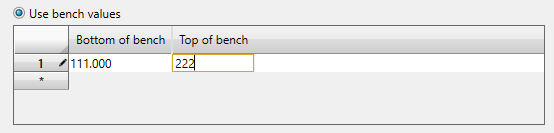
<OptionalList Label="Use bench values" Group="Selection" >
	<Parameter Type="Numeric" Mandatory="true" Pattern="P $$"
		Label="Bottom of bench" />
	<Parameter Type="Numeric" Mandatory="true"
		Label="Top of bench"  />
</OptionalList>
The result will be "P 111.000 222.000"
-
List — Same as OptionalList but not optional.
Licences
The Maptek Workflow Editor incorporates unmodified binary files provided by Microsoft Corporation, herein referred to as IronPython files. These files are contained within the Maptek Workbench plugin program directory. The IronPython files are explicitly not covered by the Maptek EULA. Microsoft provides the IronPython files under the licence described in the "License.html" file, found in the Documentation/WorkflowHelp subdirectory of the Workbench installation.
